


How to Sync Square to WooCommerce (Step-by-Step Guide)
Here are 6 simple steps with pictures to correct a sync Square to WooCommerce. Perhaps you even got this message: “inventory not updating from Square to WooCommerce.”
Why Sync Square with WooCommerce?
If you’re ready to sync Square to WooCommerce, this quick guide will show you how to connect both platforms in just a few steps. By integrating Square with WooCommerce, you can automatically sync your products, track sales in real time, and manage both online and in-person payments from one dashboard. As a result, the Square WooCommerce integration not only saves time but also reduces errors, helping your business stay organized and efficient.
Common Issue: Inventory Not Updating from Square to WooCommerce
Many users encounter the notice “inventory not updating from Square to WooCommerce.” Fortunately, this is easy to fix once you adjust your sync settings in WooCommerce. In this guide, we’ll walk through six straightforward steps—complete with screenshots—so your inventory updates correctly every time.
How to Connect and Sync (6 Steps)
Step 1 — Open WooCommerce Settings
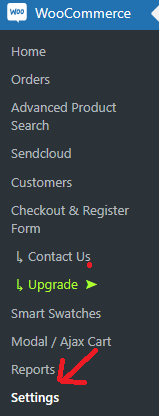
First, locate WooCommerce in your WordPress dashboard and click Settings.
Step 2 — Select the “Square” Tab
Next, click the tab in the top-right corner labeled Square. This area controls how your products and inventory synchronize between Square and WooCommerce.

Step 3 — Adjust the Sync Setting
Then, under Sync Settings, make sure the setting is set to WooCommerce, not Square (as shown above).
If the sync setting is currently set to Square, that explains why your inventory is not updating from Square to WooCommerce. Therefore, click the dropdown and select WooCommerce. This selection is required to push data from Square to WooCommerce. Now click the Save button.
Step 4 — Import All Products from Square
After you save, the page will reload. At the bottom, click “Import all products from Square” as shown below.
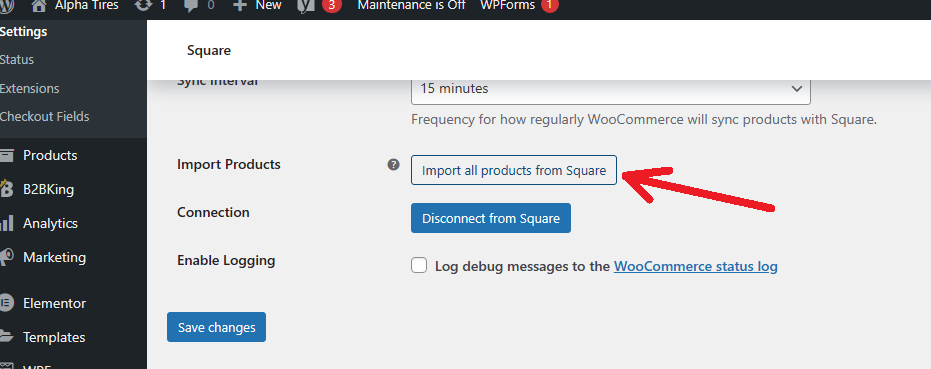
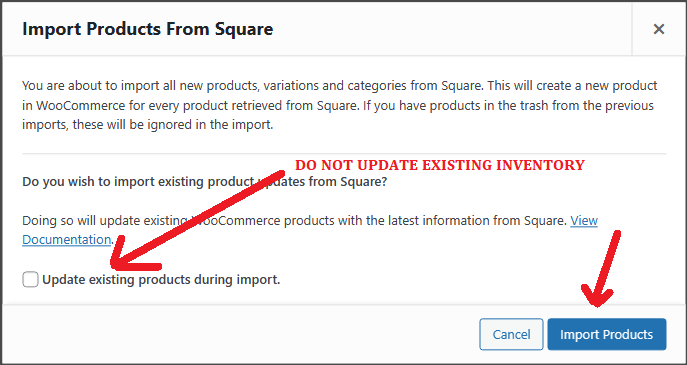
Once you click Import all products from Square, you will see two pop-ups. For safety, do not enable “update existing products” unless you intend to overwrite your current inventory.
Step 5 — Confirm the Import
Next, click Import products to continue.
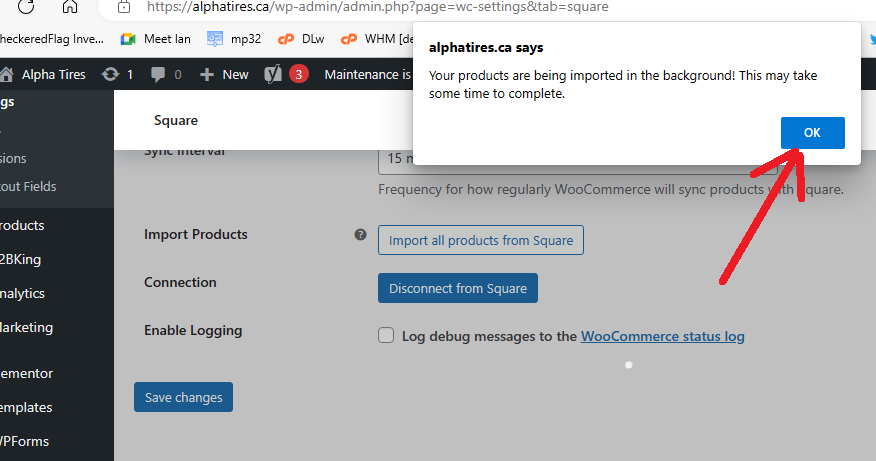
Then, a second pop-up appears indicating that your products are being imported. During this process, WooCommerce retrieves your product data from Square and syncs it automatically.
Step 6 — Verify the Synced Products
Finally, click OK to continue and view the results page. It will list your current inventory and, once completed, it will display the final “Synced Products” count (as shown below).

Wrap-Up
That’s it! You’ve successfully completed the steps on how to update inventory from Square to WooCommerce for your shopping cart. If everything looks correct, your integration is complete and ready for use.
Need Help with WooCommerce or Integrations?
At Brandable Group, we specialize in eCommerce integration, automation, and brand development. Whether you need help with Square–WooCommerce syncing, SEO strategy, or full-stack WordPress development, our experts can streamline your online business.
Best of luck with your WooCommerce shopping cart and sales. If you have questions about eCommerce performance, SEO, or brand strategy, don’t hesitate to reach out.
We look forward to learning more about your goals.
Health, Prosperity & Success — The Brandable Group Team
